macOS
Universal disk image (.dmg)
- Gamita Novelist Insiders_0.0.7_universal.dmg
- 24 MB
- MD5 a748618e2b7bbee76450519957629c10
Gamita Novelist
Minimum requirements are as follows.
The macOS build is not signed with a developer certificate, so macOS may show a security warning on first launch. Follow the steps below to allow the app to run.
View installation steps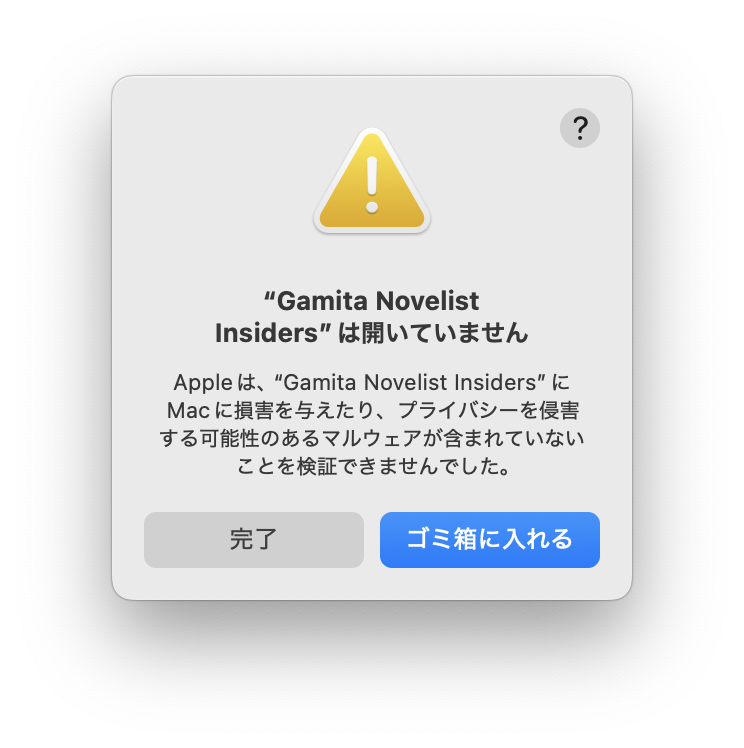
Recommended
The production release. Use this for everyday writing.
No builds are published yet.
Development
A development build for early features, bug finding, and testing—not for daily work.
Published: September 1, 2026
Insiders is a development build. Bugs may occur—back up important manuscripts separately.
Universal disk image (.dmg)
Installer (.msi)
macOS
Windows
macOS
Windows
macOS
Windows
macOS
macOS
Windows
The macOS build is not signed with a developer certificate, so macOS shows a security warning on first launch. Open the .dmg, copy the app to Applications, then follow these steps to allow it to run.
1. When you first try to open the copied app, a warning says the app cannot be opened. Click the ? (Help) button in the upper-right corner of the dialog.
2. In the help sheet, click “Open Privacy & Security Settings.” You can also open the same screen from System Settings → Privacy & Security.
3. Scroll down in Privacy & Security and open the Security section. Choose “App Store and identified developers.” macOS may ask for your password or Touch ID.
4. Return to the “cannot be opened” dialog from step 1 and click Done.
5. Under Security, an “Open Anyway” button appears. Click Open Anyway.
6. If macOS asks again whether to open the app, choose Open Anyway.
7. Enter your password or use Touch ID when prompted. Gamita Novelist should launch. After this, you can open the app normally.